Thursday, March 31, 2011

Hairstylist sentenced to death for kidnap and murder of schoolgirl

Share/Bookmark
KUALA LUMPUR: A hairstylist has been sentenced to death for kidnapping and murdering teenager Lai Ying Xin, whose body was burnt and dumped at a remote area in Kulai more than two years ago.
His two juvenile friends were ordered to be detained in a prison at the pleasure of the Johor Sultan for kidnapping and murdering their schoolmate.
Lai
Hairstylist Teh Kim Hong, 25, who knew Ying Xin and had been to her house, did not show any emotion when the verdict was delivered in a packed courtroom Thursday. The two friends bowed their head.
The victim's mother Chia Siew Phen and relatives were in court. Chia said she was happy to hear the verdict.
In sentencing, Johor Baru High Court judge Justice Mohd Zawawi Salleh said he considered seriousness of the offence where an innocent underage woman was kidnapped for ransom and murdered.
"The ransom was paid to the three accused but as they wished to destroy the evidence which could implicate them, the victim was murdered brutally, her body burnt and dumped in a remote area," he said.
In his judgment, Justice Mohd Zawawi, who is based here now, said the three accused did not show any mercy towards the victim.
"The court has to consider the torment undergone by her family members, especially her parents, and the suffering of the victim, who was murdered in a cruel manner," he said.
To both the juveniles, Justice Mohd Zawawi said they were lucky to have escaped the death sentence.
"You are fortunate as both of you are juveniles (then) so the court cannot impose the death penalty," he told the two who work as part-time cook.
The trio were accused of kidnapping Ying Xin, 16, who is the third of four siblings, in front of Hypermarket in Jalan Kulai-Air Hitam in Johor at 9.45pm on Sept 11, 2008 with intention to get ransom money of RM60,000.
They were charged of murdering Ying Xin in one of the juvenile's house in Jalan Alor Bukit Kulai between 9.45pm on Sept 11, 2008 and midnight next day.

All NEW Dynamic Views for Readers with Blogger

Share/Bookmark
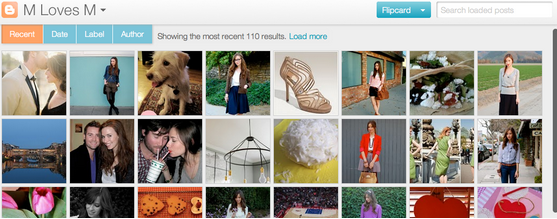
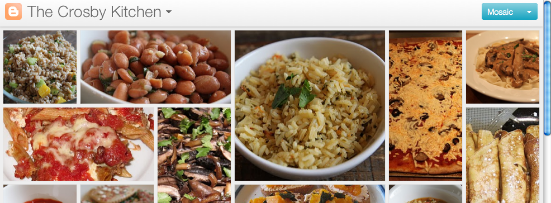
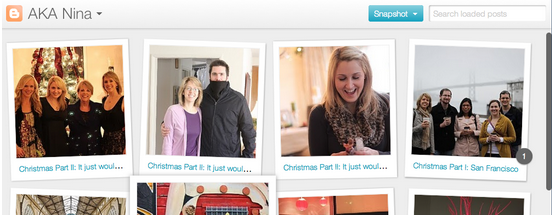
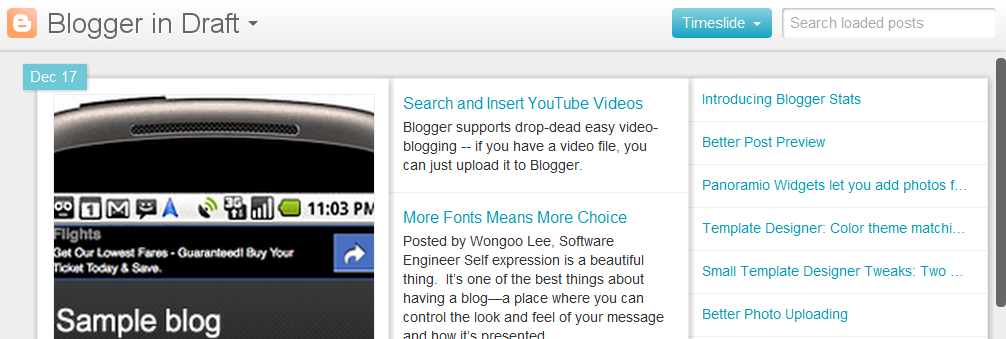
Blogger currently offers five dynamic views for its public blogs. These views are only accessible if allowed for by the blog author.


  • Flipcard: available at [blogURL]/view/flipcard

  • Mosaic: available at [blogURL]/view/mosaic

  • Sidebar: available at [blogURL]/view/sidebar

  • Snapshot: available at [blogURL]/view/snapshot

  • Timeslide: available at [blogURL]/view/timeslide


  • As an example, the URL for accessing the Sidebar view for Blogger Buzz would be http://buzz.blogspot.com/view/sidebar.


    These views require modern browsers such as Internet Explorer 8+, Firefox 3.5+, Chrome or Safari. Many elements of these views will not work should you have an older browser.


    In all views, search is available in the upper right hand corner. Clicking on the ">" arrow in the very top left of the header bar will slide the header bar across and allow you to choose different views for the current blog as well as type in a new blog URL.


    There is also a feedback link for each view.

    Flipcard

    • Mouse over any of the cards to see the post title and comment count. As you scroll down, additional posts will continue to load.
    • Click on a card to see the post in full view. You can navigate through the posts using J (older post) and K (newer post) or the arrow keys. Hit escape or click Back to all posts to return to the Flipcard view.
    • In the upper left, click to sort by DateAuthor and Category.

    Mosaic

    • Clicking on an individual tile will expand that post to the full width of the view, and clicking again will collapse the post back into its original position.
    • The exact position of the tiles is randomly determined each time the blog loads, but they will appear chronologically from top left to bottom right.
    • Once a tile is expanded, you can page down by using the "up" and "down" arrow keys as well as J and K.
    • This view is optimized for the tablet viewing, and supports screen rotation.

    Sidebar

    • Optimized for quick reading and browsing.
    • Left sidebar is list of chronological posts, with comment counts and thumbnails for individual posts.
    • and arrow keys will navigate through the posts, and comments can be displayed on the same page by clicking the Show link.

    Snapshot

    • This view will display only the posts which have images.
    • Clicking through any photo will display the full post page, with naviagtion links at the bottom for Newer and Older posts
    • Mousing over any photo will display a post snippet

    Timeslide

    • This view breaks the blog content down into three different areas:
      • Left column: Enlarged picture with a post snippet, title, and snipppet displayed in chronological order
      • Middle column: Displays just the post title and snippet
      • Right column: Displays just the individual post titles
    • When searching for posts in this view, the results will be highlighted.
    For more information, please take a look at our article on Dynamic Views for Authors.

    Increase your Adsense eCPM

    Share/Bookmark


    eCPM stands for “Effective Cost Per Thousand of Impression”. The eCPM can be computed by dividing the Adsense Revenue by the Adsense Impression and the quotient will be multiplied by 1000. The process can be presented by the mathematical formula: 

    eCPM = (AR / AI) * 1000 

    Where: AR stands for Adsense Revenue and AI stands for Adsense Impression. 

    In other words, the Adsense eCPM is totally dependent to the Adsense CTR and CPC. 

    By just considering the formula given above, we could already say that the higher in Revenue and lower impression will result to higheCPM. And on the other hand, the lower the Revenue and higher impression will result to low eCPM. 
    But, let’s say that the impression is constant in two different periods but the Revenue varies from one period to the next period.
    For example, the generated impression is 1000 in day-1 and in day-2; and the revenue is $10 in day-1 and $5 in day-2.
    By substituting the data to the formula given above, the result will be $10 eCPM in day-1 and $5 eCPM in day-2.
    The result simply tells us that if you could not increase the number of impression of the Adsense ads, you need to increase the eCPM of Adsense by simply working for the increase of the Adsense Revenue. However, in a constant impression, Adsense Revenue greatly depends on the CTR and CPC of Adsense.


    How to increase the Adsense eCPM? 

    In other words  for you to increase the eCPM what you need to do is: 

    1. Increase the CPC of the Adsense ads. Just imagine if a click in your Adsense is worth $10, which means that in just 1 click in your Adsense you already earn $10. Now, what if there are 3 clicks generated in your Adsense. Well.. That’s really very interesting especially if your Adsense CPC is as high as $10 per click because in just 3 clicks you already have earned $30. 

    2. Increase the Adsense CTR. Again, imagine what would be your income if your Adsense have CPC of $10 per click but no one click your Adsense ads. So, you earn nothing even if your Adsense has better CPC.That simply tells you that the Adsense CTR really affects your Adsense income. The more your Adsense receive clicks, the more you earn from Adsense.

    3. Avoid being Smart Priced by Google Adsense. Smart Pricing is another thing that makes your Adsense earning to drop. Google Adsense implement Smart Pricing to protect its advertisers and help them increase the ROI.


    4. Remove ads from pages with very low eCPM (not necessarily CTR though)

    5. limit the number of adblocks per page.

    6. make the content on the pages as easy to target as possible with all the usual “spider food” SEO stuff, page titles, page names, descriptive original content,etc.

    7. try a 336×250, above the fold, centered in the content, or a leaderboard

    8. blend the ads in as naturally as possible.

    How to add Flying "Scroll to Top" button to your Blogger blog using Jquery

    Share/Bookmark
    If your Blog has lot of long posts, adding a cool flying 'Scroll to Top' link makes it easier for your visitors to quickly navigate your pages.


    Most of you have already known about how to add 'scroll to top' by adding simple '#top' to your links. But, this one uses Jquery which makes it really smooth ( you really like it for sure).


    So, lets learn how to add it to your Blogger blog..

    1. Go to Layout » Edit html

    Find
    </body>

    Add before

    <a href="#" id="backtotop">^ Scroll to Top</a>

    <script src='http://ajax.googleapis.com/ajax/libs/jquery/1.3.2/jquery.min.js' type='text/javascript'></script>

    <script type='text/javascript'>

    /*-----------------------

    *Scroll to top


    -----------------------*/


    $(function(){$.fn.scrollToTop=function(){$(this).hide().removeAttr("href");if($(window).scrollTop()!="0"){$(this).fadeIn("slow")}var scrollDiv=$(this);$(window).scroll(function(){if($(window).scrollTop()=="0"){$(scrollDiv).fadeOut("slow")}else{$(scrollDiv).fadeIn("slow")}});$(this).click(function(){$("html, body").animate({scrollTop:0},"slow")})}});


    $(function() {

    $("#toTop").scrollToTop();

    });

    </script>


    2. Find

    ]]></b:skin>


    Add before

    #backtotop { width:100px;background:#F4FFBF;border:1px solid #ccc;text-align:center;padding:5px;position:fixed;bottom:10px;right:10px;cursor:pointer;color:#666;text-decoration:none; }


    3. Save the changes!

    Evolution of Blogger 1999 - 2009

    Share/Bookmark
    Blogger has always been one of the greatest (if not the best) Free Blogging platforms available on net with so many features like unlimited bandwidth, lot of templates, multi image uploading,etc.
    Its always nice and interesting to know how Blogger looks like in the past. So, in this post, we attempt to bring you back in time to look at how blogger look like in the past and then scan through it's history with images.

    Blogger was created by 
    Pyra Labs and was launched on August 23, 1999. It was one of the earliest blog publishing tools and it is credited for helping popularize the format.
    Here is it's design then..

    Blogger.com in 1999


    Design of Blogger in 1999

    Blogger.com in 2000


    Blogger in 2000
    Later, Blogger was acquired by Google Inc in the year 2003 and changed their design in 2004 and also added some cool features like Image uploading (via Picasa) , comments, drag and drop widgets, individual archieve pages for posts,etc.

    Blogger.com from 2004 - Now


    Blogger from 2004 to now
    And also Blogger supports Google Adsense which generates revenue for the webmasters.

    Here is how adsense website look like in the past.. (year 1998)
    Adsense in 1998

    Is Blogger going in the right direction..? Share your thoughts!

    Hosting your Template Images in Blogger with Unlimited Bandwidth

    Share/Bookmark
    If you are a regular reader of Blogger Tricks, you probably know that previously I had many problems hosting my template images. A year back, I used photobucket to host my template images.. but, the problem with photobucket and many other free image hosts is their bandwidth limitations. Once, you exceed a specific amount of bandwidth, your images won't show, instead.. an irritating ' bandwidth exceeded' image shows. Next, after that I tried to create.. like a new photobucket account per each template.. but, that also exceeded in a matter a couple of weeks.
    Not only me, my other blogger template designers are also struggling to find a reliable, free image host with unmetered bandwidth.

    I tried to upload the images to blogger and copy the image url from the status bar and use it in templates.. but it didn't worked. But, recently I came to know that we can actually host the images( large) in blogger and hotlink,use them in templates, forums,etc.

    Here is the trick..

    As usual, create a new post in blogger and upload your template images to that post... but don't publish it... keep it as a draft.


    Once you completed uploading all the images, Open each image in a new window.
    open image in new window


    Once, the image is loaded in the new window, what I previously did was to copy the image location from the status bar and paste/hotlink it in templates. 
    But, it didn't worked!
    Copying image url from status bar

    Now, the trick is, many people don't know that the url which we copy from the status bar is not exactly the direct link to that image file... that's why we can't hotlink to that image.

    So, what we have to do to hotlink to that image is Right Click on the image and ' Copy Image location'. (for firefox users). For Internet explorer users, Right click on the image and go to Properties and then copy the image url from there.
    right click and copy image location

    Example:
    For the above picture, status bar shows...

    https://blogger.googleusercontent.com/img/b/R29vZ2xl/AVvXsEjX92FyWfH_diu4CalpylS16ErMxFhz8HUPWGFiHk3tAEY9CAYrVA9wgMrtYIjX1ctgBtvDF6Wpkym7YesoEsUoXyCK8j0NXnyn-EBj8DURYhhZZQ8MdEOZKyw4DIhio2t-jMYoTlnmoJNn/
    -h/2008-05-28_124414.jpg


    which don't work.

    And the Real image url we get after right clicking and copying image location is..

    https://blogger.googleusercontent.com/img/b/R29vZ2xl/AVvXsEjX92FyWfH_diu4CalpylS16ErMxFhz8HUPWGFiHk3tAEY9CAYrVA9wgMrtYIjX1ctgBtvDF6Wpkym7YesoEsUoXyCK8j0NXnyn-EBj8DURYhhZZQ8MdEOZKyw4DIhio2t-jMYoTlnmoJNn/s1600/2008-05-28_124414.jpg


    Which works and we can do whatever we want.. with unlimited bandwidth :D
    Hope this trick will be useful to many people who are searching for unlimited bandwidth image hosts.

    How to Post Larger (HQ) Images in Blogger Posts

    Share/Bookmark
    This is one of the most wanted blogger hacks, which makes it possible to post big size pictures in blogger posts.
    Normally, If you upload a large image to blogger(with large thumb size selected), it will automatically resize it and then post it as thumbnail . But, the image quality of the resized image is very poor. So, to make the image look more clean and sharper, this trick will come handy.

    Normally Uploaded Image: (with large thumbnail selected)


    Normal Picture without the hack
    Image after applying the hack:

    Normal Picture without the hack

    So, lets learn how to do this..

    1.First, calculate how much image size(large) you want to display ( normally, its just a bit less than your main body width). Suppose, take this blog as an example, the main body width is about 570px. So, the maximum width to post a large image is 570px. But, to make the image looks nice, we have to give some padding to it.so,choose the width which is a bit less than the post body width.. like 560px.

    Now, Go to Layout » Edit html

    Find this

    ]]></b:skin>

    Add this before that line:


    img {
    max-width: 560px;
    width: expression(this.width > 560 ? 560: true);
    }


    Change the value in red depending on the previous step.

    Note: Do check if you have the img{ tag already in your template. If its there, just add the additional couple of lines to it.


    max-width: 560px;
    width: expression(this.width > 560 ? 560: true);


    Save the changes.

    2. Now, while doing your posts, upload the images normally like you did previously. Once the image is uploaded, go to Edit html tab, and the image code will look something like this


    <a onblur="try {parent.deselectBloggerImageGracefully();} catch(e) {}" href="https://blogger.googleusercontent.com/img/b/R29vZ2xl/AVvXsEgRobIdUpkeUXbC5RePEe-ejwTmkUzHRZTNjlIhgButYP9ynP_vMwtI-VtvxjDGfSl_ViBMgqDDmLqW-DewNuLF5cFVq7GtfEzenU-CnoHvrqMNndKWV2-rU30d7VKK-2XlELukTPzg8kYb/s1600-h/megan+fox.jpg"><img style="margin: 0px auto 10px; display: block; text-align: center; cursor: pointer; width: 280px; height: 400px;" src="https://blogger.googleusercontent.com/img/b/R29vZ2xl/AVvXsEgRobIdUpkeUXbC5RePEe-ejwTmkUzHRZTNjlIhgButYP9ynP_vMwtI-VtvxjDGfSl_ViBMgqDDmLqW-DewNuLF5cFVq7GtfEzenU-CnoHvrqMNndKWV2-rU30d7VKK-2XlELukTPzg8kYb/s400/megan+fox.jpg" alt="Normal Picture without the hack" id="BLOGGER_PHOTO_ID_5350218059319919970" border="0" /></a>


    All you have to do is Just remove that bolded text (width and height attributes) and replace s400 to s800.

    So, the final code looks like this


    <a onblur="try {parent.deselectBloggerImageGracefully();} catch(e) {}" href="https://blogger.googleusercontent.com/img/b/R29vZ2xl/AVvXsEgRobIdUpkeUXbC5RePEe-ejwTmkUzHRZTNjlIhgButYP9ynP_vMwtI-VtvxjDGfSl_ViBMgqDDmLqW-DewNuLF5cFVq7GtfEzenU-CnoHvrqMNndKWV2-rU30d7VKK-2XlELukTPzg8kYb/s1600-h/megan+fox.jpg"><img style="margin: 0px auto 10px; display: block; text-align: center; cursor: pointer;" src="https://blogger.googleusercontent.com/img/b/R29vZ2xl/AVvXsEgRobIdUpkeUXbC5RePEe-ejwTmkUzHRZTNjlIhgButYP9ynP_vMwtI-VtvxjDGfSl_ViBMgqDDmLqW-DewNuLF5cFVq7GtfEzenU-CnoHvrqMNndKWV2-rU30d7VKK-2XlELukTPzg8kYb/s800/megan+fox.jpg" alt="Normal Picture without the hack" id="BLOGGER_PHOTO_ID_5350218059319919970" border="0" /></a>


    Done! Now, your uploaded image will look big in the post.

    Adsense Revenue Sharing Feature in Blogger Blogs

    Share/Bookmark
    This cool trick shows how to implement Google Adsense Revenue sharing feature in blogger(blogspot) blogs:

    Do you run a blogger blog which is controlled by multiple authors ? Are you looking for an idea to share revenue with your co-authors? If so, then this nice Blogger trick solves all your problems.

    First, What is Adsense Revenue Sharing ?

    Suppose, you're the administrator of a blogger blog which has multiple guest authors. If you want to share the blog revenue with them, normally you divide the total revenue based on the Post count or Pageviews. But, most of the time it may not be accurate because CPC and CPM varies from post to post depending on the keywords,etc. So, it may not encourage the team members to post more stuff :(

    But, with this cool trick, you can share the blog revenue with them more precisely because every author gets his own ad displayed in all the posts he/she does.

    So, lets see how to add this feature to your blog..


    For example, If your blog as 3 authors - John, Ricky and Britney

    1. Sign into Blogger » Layout » Edit html

    2. Tick the "Expand Widget Templates "

    3. You can insert the ad anywhere you want in the post body.. In this example, I'll show you how to add it inside the blog post (between the post title and post body)

    Find this line:

    <p><data:post.body/></p>

    and Paste the below code above that line


    <b:if cond='data:blog.pageType == "item"'>


    <b:if cond='data:post.author == "John"'>

    PASTE THE AD CODE OF JOHN HERE

    </b:if>


    <b:if cond='data:post.author == "Ricky"'>

    PASTE THE AD CODE OF RICKY HERE

    </b:if>


    <b:if cond='data:post.author == "Britney"'>

    PASTE THE AD CODE OF BRITNEY HERE

    </b:if>


    </b:if>

    <br/>


    Replace the Names with your Blog authors (Case sensitive)

    4. Don't Copy and Paste the Adsense Code directly in the template. First, Go to this Blogger Ad Code Converter Page and paste your adsense code in the box provided and click on "Convert Ad Code".
    Now, copy that code and paste it in the template.
    (Look at the screenshot below)

    adsense revenue sharing in blogger

    and Finally, SAVE THE CHANGES.

    From now on, Each member of your blog can monetize their posts with their own adsense ads... Happy Blogging :)

    Note: You can use the same hack to put other advertising networks aswell.. like adbrite,bidvertiser,etc.

    How to Increase Technorati Authority ?

    Share/Bookmark
    How to Increase my Technorati Authority?
    This is one of the hot questions that's thrown around in the blogging world day after day.
    For those who are new to blogging or if you don't know what technorati is.. Technorati is one of the leading Blog search engine which crawls and index millions of blogs in real time.
    And Technorati Authority means the total number of blogs that are linking to a website in the past six months. If you have a good technorati Authority, you get massive traffic from them. Also, technorati authority is one of the parameters that advertisers often look into before buying advertising spots.We can say how good and popular a particular blog is with the authority number. So, Here is my list of top 12 ways to increase your Technorati authority quickly..

    1. Quality Content : As always, Content is King! The more quality content you post , the more chances that other blogs link to your site.

    2. Giveaways : Who hate freebies..? you can encourage people to link to your site by giving away free stuff like templates,fonts,icons or any other resources you expertise in.

    3. Link to Us : Design a good small button and add the "Link to Us" html code to your blog sidebar just like I did it in this blog (check the right sidebar).. so, it's easy for your readers to just copy & paste your link on their blogs.

    4. More Blogs - More Authority : Do you run lot of blogs ? You can increase your Technorati Authority easily by linking all the blogs to your main blog... So, the more blogs you have , the more authority you get..as simple as that.

    5. Sponsor a Blog theme : There are millions of people using blogs like Blogger and Wordpress. So, sponsoring a blog theme is one of the best and fastest way to get tons of backlinks to your site. Everytime someone uses your template, your backlinks will increase along with technorati authority.

    6. Link exchange : Try to contact blog owners related to your site niche and propose for link exchange. There are lot of blog directories out there.. Just go to them and select your blog category and browse other blogs related to your niche and contact them one by one for link exchanges or you can find some link exchange parters in forums like Digitalpoint.

    7. Buy links : If you have some $$ to advertise your site, you can buy links and blog posts on other blogs that are relevant to your site and can increase your authority.

    8. Top Commentators : Some people put 'Top Commentators' widget on their blogs and link to their top comment posters.Try to find them and comment on their blogs (no spammy ones) and get a backlink to your site.

    9. Run a Contest : You can Run a blog contest giving away prizes like money, entrecard credits, rapidshare accounts, etc and ask your readers to link back to your site to participate in the contest. This is one of the proven ways to increase your technorati authority in a rapid pase.

    10. Use Technorati Badges : Simply add a technorati 'Fav this blog' widget to your blog. This can make your readers to easily "Fav" your blog which gives you a point.

    11. Blog commenting : This is well known and popular method to increase backlinks to your site aswell as technorati authority. Do a bit of research on dofollow blogs and your authority will increase everytime if the blog you commented on is claimed.

    12. Ping Blogs : Check who is linking to your blog. If you are using visitor counters like histats, sitemeter,etc.. Check your referrals stats and find out the blogs that are linking to you and ping them.. so, technorati can crawl them fast and increase your authority fast. you can ping the technorati here.

    World's WORST PASSWORD's list - "123456" is on Top!

    Share/Bookmark
    Want to know the World's Worst passwords list of all time..? Oh..yea, then you are in the right place!
    As you know... hackers are everywhere on the net.. and recently, one of the popular Internet forum phpbb.com was hacked by a hacker who had stolen almost 20,000 usernames and passwords and then after released them to the public, giving us an idea how ridiculously easy passwords people use..

    According to one of the surveys conducted by whatsmypass.com recently, the worst password used by most of the internet users is "123456" followed by "password" in the second place.
    Other popular choices include:
    666666
     : Six Sixes
    7777777 : Seven Sevens
    ncc1701 : Ship number of Starship Enterprise
    and even words like batman, bond007, cocacola made it to the list.

    Interesting Facts: 
    » Almost 1 out of 9 people use atleast one of the passwords mentioned on the below list.
    » Almost 1 out of 50 people uses one of the top 20 worst passwords on the below list
    » According the the survey by Digital Communications agency @www , an average adult human being had as many as 15 passwords to remember
    » About 61% of the People use the same passwords for as many different accounts as possible in order to easily remember it and make life easier
    So, here is the Top 500 Worst Passwords List : 
    If your password is there in the list, change it asap.. 
    (The image take a while to load.. please be Patient :)
    Click on the image to view in full version..
    worst passwords list

    Related Posts Plugin for WordPress, Blogger...
    Twitter Delicious Facebook Digg Stumbleupon Favorites More

     
    Join Bloggerative on Facebook Follow Bloggerative on Twitter Subscribe to RSS Contact Bloggerative
    Sponsored by iPhoneMY